If you are in a hurry, here is the fast track to setting up your unified inbox for customer support:
- Channel Audit: Identify where your customers actually talk to you.
- Human-in-the-Loop Setup: Balance AI speed with human quality.
- Sync vs. Async Rules: Categorize messages by urgency.
- Team Rollout: Move from 5 logins to 1 single dashboard.
The Tab-Switching Tax Is Costing You More Than You Think

Every time your team jumps from WhatsApp to email to a CRM, and back, they lose focus. Studies show it takes over 20 minutes to fully regain concentration after a context switch. Multiply that by 30 message threads a day, and you have a serious productivity problem.
This is the Tab-Switching Tax – the hidden cost of using too many disconnected tools. It slows down your response time, increases mistakes, and burns out your best agents.
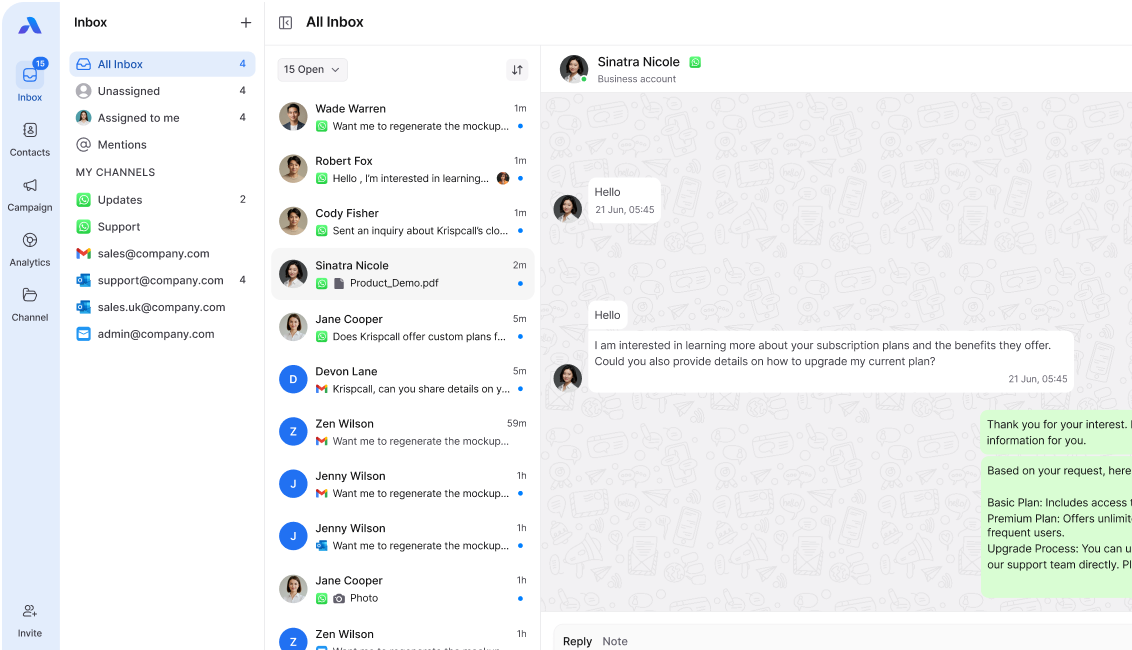
The fix is a unified inbox: one command center where every customer message lives, no matter where it came from. This guide walks you through exactly how to implement a unified inbox for customer support, step by step.
Why a Unified Inbox Works Like a Multi-Tool
Think of your current setup like carrying five separate tools in your pocket – a screwdriver, a knife, a flashlight, a ruler, and a pen. You can get the job done. But it’s slow and clunky.
A unified inbox is the Multi-Tool. Everything your team needs is in one place. One login, one screen, one workflow.
When your team operates from a single command center, response times drop, customer experiences improve, and your support operation becomes proactive instead of reactive. This is what a unified inbox is really about – allowing businesses to handle every customer conversation from one place, without adding headcount or complexity.
Step 1: The Channel Audit
Before you set anything up, you need to know where your customers are actually messaging you. List every active channel your team uses today.
Here is a simple Channel Priority Matrix to help you sort them. Every incoming message – whether it arrives via WhatsApp, email, or live chat – needs a home in this matrix:
| Channel | Volume (Daily Messages) | Response Type | Priority |
| High | Sync (real-time) | Priority 1 | |
| High | Async (time-shifted) | Priority 2 | |
| Live Chat (coming soon) | High | Sync (real-time) | Priority 2 |
| Instagram DM | Medium (coming soon) | Sync | Priority 3 |
| Facebook Comments | Medium (coming soon) | Async | Priority 4 |
| Twitter/X Replies | Low (coming soon) | Sync | Priority 5 |
Fill this matrix with your own numbers. If a channel gets fewer than 5 messages a week, leave it off the list for now. Start with the channels that actually drive volume.
Your audit checklist:
- [ ] Count daily message volume per channel
- [ ] Note whether each channel is sync (needs fast reply) or async (can wait)
- [ ] Identify which channels your team currently misses or delays on
- [ ] Flag channels where customers feel they get no response
This audit gives you the foundation for your entire unified inbox setup. Don’t skip it.
Step 2: Choose Your Human-in-the-Loop Setup
AI can draft replies fast. But AI alone gets things wrong, and when it does, customers feel the difference immediately.
The smart approach is Human-in-the-Loop: an AI agent drafts the message, a human reviews it, and then it sends. This agent-based model gives you the speed of automation with the judgment of a real person. It is one of the most effective ways to improve customer experiences without slowing your team down.
Here is how to configure your setup:
| Message Type | AI Role | Human Role |
| FAQ/repeat question | Draft full reply | Approve or edit in one click |
| Complaint or upset tone | Draft reply + flag urgency | Review carefully before sending |
| Complex or multi-part question | Draft partial reply | Complete and personalise |
| First-time customer greeting | Draft welcome message | Approve only |
Use Question Batching to handle volume. When ten customers ask the same question in one morning, like “Has my order shipped?” – Airchannel AI groups them into a single batch. One reviewed response goes out to all ten. Your team saves 30 to 40 minutes before lunch.
This is how you move from reactive (answering one by one, always behind) to proactive (getting ahead of patterns before they pile up).
Step 3: The Sync vs. Async Rule
Not every message needs a reply in five minutes. Treating all messages as urgent is what creates burnout.
Apply this simple rule to every incoming message:
- Sync messages (WhatsApp, live chat, real-time DMs) need a reply within 15 minutes. These customers are waiting. Every minute of silence increases frustration.
- Async messages (email, form submissions, review responses) can go into a response queue. Aim for a reply within a few hours, not seconds.
- Bulk/broadcast messages (mass replies, comment threads) should be batched and handled in a dedicated time block, not mixed in with real-time conversations.
Most contact centers use this exact split to improve customer response times without overloading their agents. It works for teams of 2 just as well as teams of 200.
Set your team’s response windows before you go live. Write them down. Share them. Make them part of your customer support workflow so everyone operates by the same rules.
See customer communication examples for real scripts and templates that match each message type. Having the right words ready makes sync replies faster and async replies sharper.
Step 4: The Team Rollout – From 5 Logins to 1
This is where most teams stall. Change is uncomfortable. Make the rollout feel like an upgrade, not an overhaul.
Here is the good news: connecting your first channel on Airchannel AI takes about 5 minutes. There are no APIs to configure, no developer needed, and no technical setup required. You connect WhatsApp or Email directly from your dashboard, and your inbox is live.
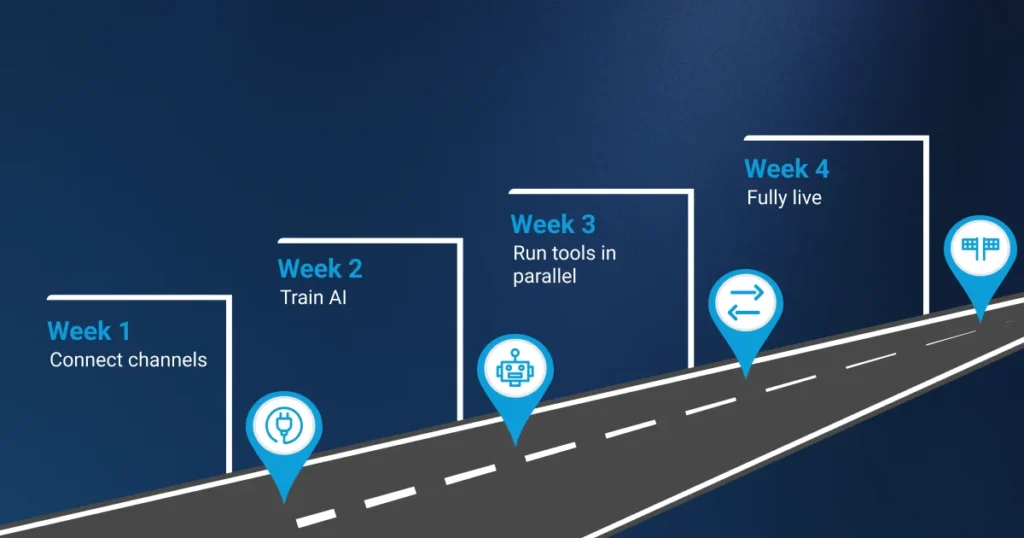
Follow this launch timeline:
| Week | Action | Owner |
| Week 1 | Connect WhatsApp and Email to Airchannel AI (5 minutes, no API needed) | Team Lead |
| Week 1 | Import existing contact history from your CRM | Team Lead |
| Week 2 | Train team on Human-in-the-Loop review flow | Manager |
| Week 2 | Set up Question Batching rules for the top 5 repeat questions | Support Lead |
| Week 3 | Run both old tools and the new inbox in parallel | Full Team |
| Week 4 | Fully switch to unified inbox, retire old logins | Manager |
Run parallel for one week before you cut over. Let your team build confidence with the new tool while still having the old one as a safety net. After week four, the old logins go.
Your pre-launch checklist:
- [ ] All channels connected and tested
- [ ] Human-in-the-Loop review rules configured
- [ ] Question Batching set up for top repeat queries
- [ ] Sync vs. Async priority rules documented and shared
- [ ] Team trained with at least one practice session
- [ ] Response time targets agreed and visible to everyone
The Software Pyramid: Where Your Unified Inbox Fits
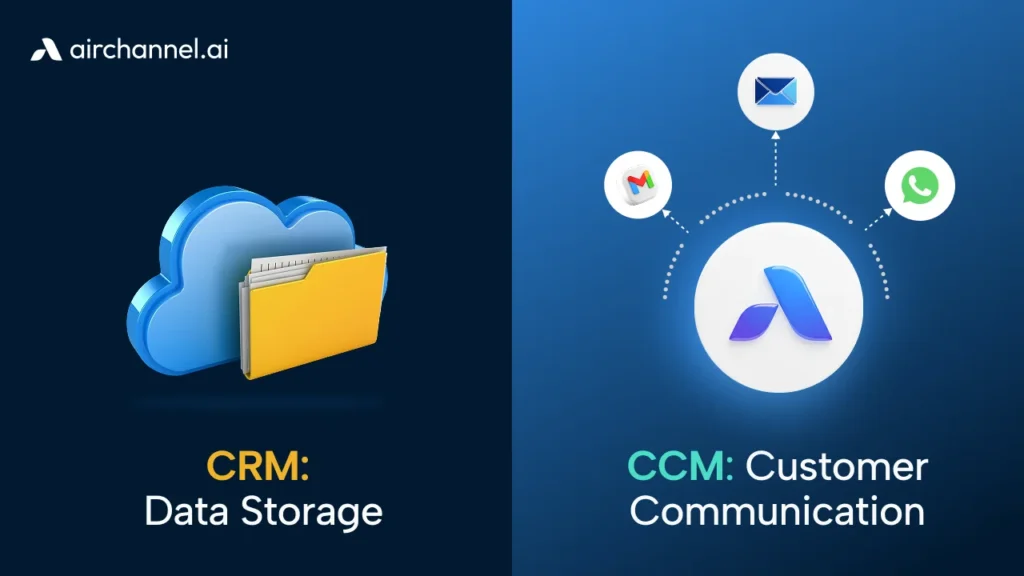
Most teams think about CRM first. CRM (Customer Relationship Management) stores who your customers are – their names, purchase history, and account details. It answers: Who is this person?
But CRM alone does not tell you how you are talking to them right now. That is where CCM (Customer Communication Management) comes in. CCM sits on top of CRM in what we call the Software Pyramid – it manages every customer conversation happening across every channel, in real time.
Your unified inbox is the CCM layer. It routes incoming messages, connects to your CRM for context, and handles the live conversation on top – directly improving customer experiences at every touchpoint. Read more about the difference between CCM vs. CRM before choosing your customer communication tools to make sure you are building the stack in the right order.
Common Mistakes to Avoid
- Connecting every channel at once. Start with your top two (WhatsApp and Email) and add more once the team is confident.
- Skipping the channel audit. Teams that skip this step end up with a messy inbox full of low-value noise.
- Turning off human review too early. AI needs calibration. Keep humans in the loop for at least the first 30 days.
- No response time targets. Without agreed-upon windows, the sync vs. async rule falls apart immediately.
You Are One Setup Away From Proactive Support
Right now, your team is probably reactive – chasing messages, missing threads, losing time to the Tab-Switching Tax every single day.
With a unified inbox in place, your team works from one command center. Customer engagement goes up. Response time metrics improve. Customers feel heard faster. Your social media manager stops drowning in tabs, and your live chat and WhatsApp threads finally sit side by side.
Every incoming message gets seen. Every customer conversation gets a response. That is how you improve customer experiences at scale – not by hiring more people, but by giving your team the right tool.
The shift from reactive to proactive support does not require a big team or a big budget. It requires the right setup. And with Airchannel AI, that setup takes 5 minutes – no APIs, no developer, no waiting.
Ready to Build Your Command Center?
We will walk you through connecting your first channels, configuring your Human-in-the-Loop rules, and getting your team lives in under a week.
Request a demo and explore the platform yourself today.
Your customers are already messaging you. Now it is time to answer them all from one place.